An address guests can understand
Invitation location: map link, address, and entrance
Updated 2026-10-30
An invitation location needs the venue, its address, and the entrance to use. Add a map link to that fixed place and check the text. If a detail is still pending, say so before you send it. The map does not confirm access.
Updated October 27, 2026
Which ground detail helps guests prepare to arrive?
An address gets guests to the right place, but it does not always describe the route from the entrance to the main area. If you have checked with the venue, add a concrete detail such as “a gravel path connects the entrance to the tables” or “the reception is on grass.” Guests can use it to choose footwear or ask about another entrance rather than guessing from a photo.
Separate a surface you have observed from a detail still pending, and avoid describing the entire venue as accessible. Ask which entrance will be open during the event and how to discuss a specific need privately. If the setup changes, check the route again before updating the message; an earlier visit does not certify the event-day conditions.
You can pair the route detail with flexible attire guidance. The dress code wording guide distinguishes a suggestion from a confirmed requirement without making a purchase mandatory.
Read more: Dress code wording on an invitation.
| Detail | What it helps you check | What it does not prove |
|---|---|---|
| Name and address | Written venue identity | An open door or authorized access |
| Link to the fixed venue | Destination you compare after opening | Notice received or attendance |
| Entrance instruction | Entrance agreed with the venue | An accessible route for every person |
A map button can work perfectly and still lead to the wrong door. That can happen when two venues have the same name, when the reception is inside a larger complex, or when the pedestrian entrance is on another street. The invitation needs a reference guests can read even without opening the button. Here you prepare the details separately: venue, address, entrance, and time. The tools help you review a link’s format and create a local draft. Checking the actual venue remains your responsibility: none of these tools visits the site, checks traffic, or certifies a route.
What location details belong on an invitation?
Write the confirmed venue name, the address that distinguishes it, and an entrance instruction when needed. The map link supports those details. It does not replace the written address or turn a service door into a guest entrance. If the building has several rooms, identify the one being used and confirm with the venue manager how guests recognize it from the street.
Arrange the information for someone who does not know the area. A phrase such as “our usual hall” may make sense to close family but leave a new guest without a useful reference. Separating venue, city, and entrance helps you identify exactly what is missing. Do not guess a building number, parking option, or accessible entrance that you have not confirmed.
This guide separates three checks: the text identifies the venue, the map points to the expected place, and the entrance matches the event. These are different tasks. Someone can open the link without having responded to the invitation, and holding an invitation does not mean every door is available. Keep the actual admission conditions agreed with the organizer.
The address is part of the full message. To organize the other details, review what to put on an invitation.
When is the city enough, and when do guests need the address?
The city can be enough for an advance date announcement when you are not yet sending arrival instructions. The final invitation to an in-person gathering needs enough information to find the venue. Give each message its own job: asking people to reserve a date does not resolve the venue. If that is still pending, keep the status visible and send the agreed details later.
A draft might say “Gathering in Austin; venue to be confirmed.” Do not attach a map of a location you are merely considering. Once the venue is settled, replace that pending detail with its name, address, and relevant instructions. There is no need to rewrite the earlier announcement as though the information had been confirmed from the beginning.
For a wedding, this also distinguishes a save-the-date from the invitation containing the gathering’s details. The video creator’s advice belongs to that context and does not establish a universal deadline for every party. Use the advance announcement for what you already know; provide arrival instructions once they have been checked. The video explains that distinction rather than demonstrating Google Maps.
Read more: What to put on an invitation: wording, structure, and examples.
If you are only announcing the date for now, prepare a save-the-date with confirmed details.
When is the city enough for a save-the-date?
The Wedding Course distinguishes an advance date announcement from the later invitation. The early section discusses city and location details; it does not demonstrate Google Maps or verify a venue. The creator’s timing suggestions are wedding advice, not a universal schedule.

The YouTube player loads when you open the video. Watch on YouTube.
How do you copy a Google Maps link to a fixed venue?
Find the venue in Google Maps, check its listing, and use the share option to copy the link. Control names can differ by device. Google’s official help distinguishes sharing a place or directions from embedding a map in a website. To attach a link to an invitation, you do not need to paste a map’s HTML code.
Reopen the copied link and compare the displayed place with the written address. A cropped screenshot of a map is not that test: it is not the link your guest will receive. If several locations share the name, check the city and marked point too. When the result is unfamiliar, return to the confirmed venue before continuing with the message.
Sharing the event’s fixed venue and sharing your personal location in real time are different actions. An invitation needs to help someone find a destination; it does not require tracking your movements. The wedding video above discusses the location details used in a save-the-date. It does not verify a particular venue or show which map commands are available on your device.
What can this guide’s link checker actually verify?
The checker recognizes some common Google Maps link formats and identifies basic typing problems. It works only with the text you paste. It does not open the link, follow redirects, or know the final place. A “recognized format” result means exactly that; you still need to compare the destination with the invitation and confirm it is the intended venue.
A shortened link hides its destination until it is opened. We therefore do not infer from its domain that it leads to the right venue. A lookalike address is not accepted merely because another domain contains the word Google. If the checker does not recognize a format, keep the original and examine it separately; do not trim it to get a favorable result.
The Maps URLs documentation describes cross-platform links for opening searches or directions and states that these URLs do not need an API key. This tool does not query a maps API or turn a search into a verified place. Its purpose is narrower and practical: to distinguish a format review from the real test you need to perform before sending the invitation.
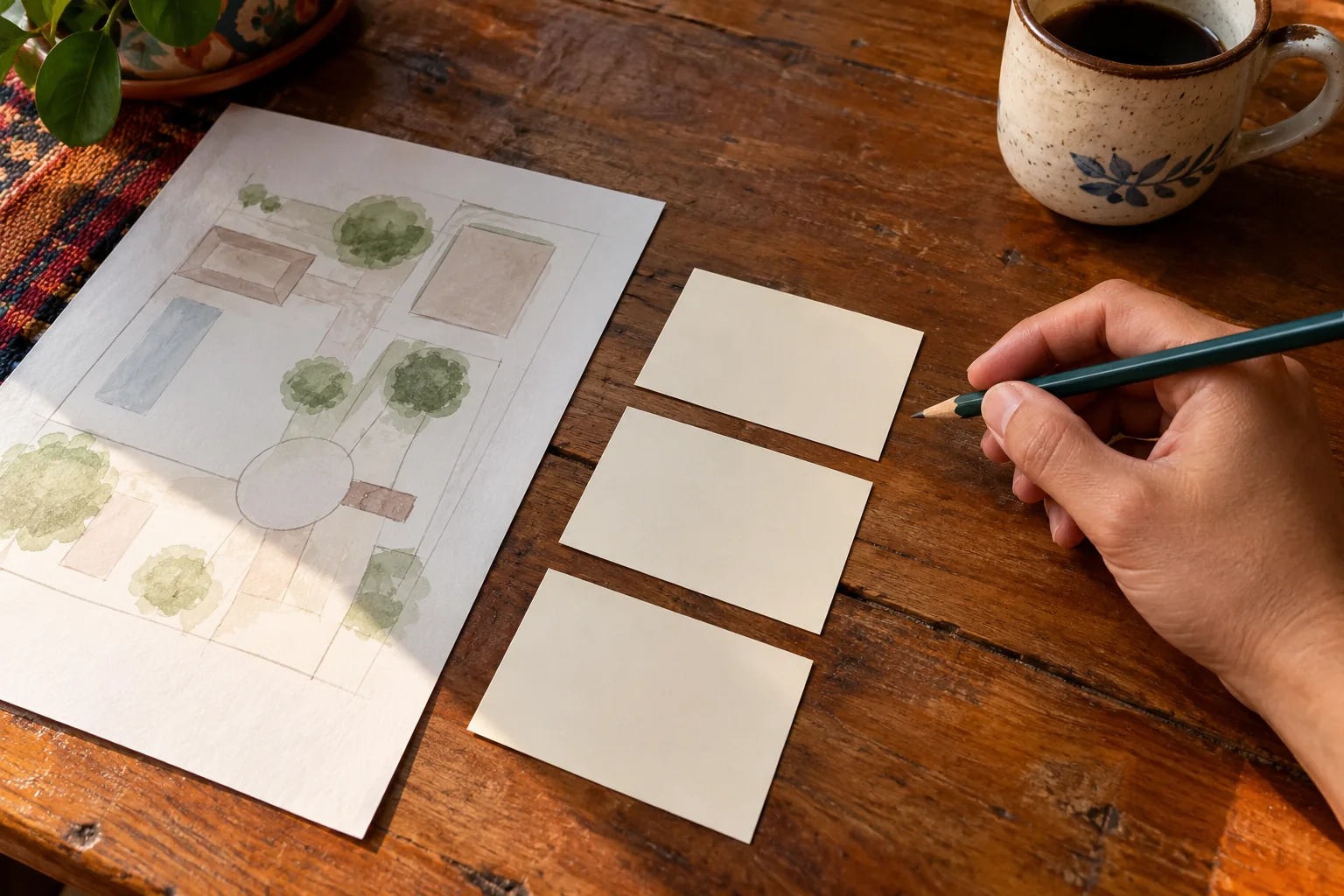
1. What format does the link use?
Paste the venue link. This check does not open it or verify its destination.
Waiting for a check.
Without JavaScript: open the copied link yourself and compare the name, address, and entrance with the invitation. There is no automatic check.
How do you describe the correct door and the final approach?
Describe the entrance guests will actually use, especially when it differs from the building’s main address. You may need to identify a side door, an interior room, or an agreed meeting point. Use stable, understandable landmarks. Someone who was not on the advance visit should be able to recognize what you are asking them to find.
A useful instruction separates confirmed details from assumptions. “Enter through the courtyard, confirmed with the venue” provides an operational detail; “access for everyone” may promise more than you know. When someone needs an accommodation, agree on the route with that person and the venue. Do not infer accessibility from a photo, a map pin, or the absence of visible steps.
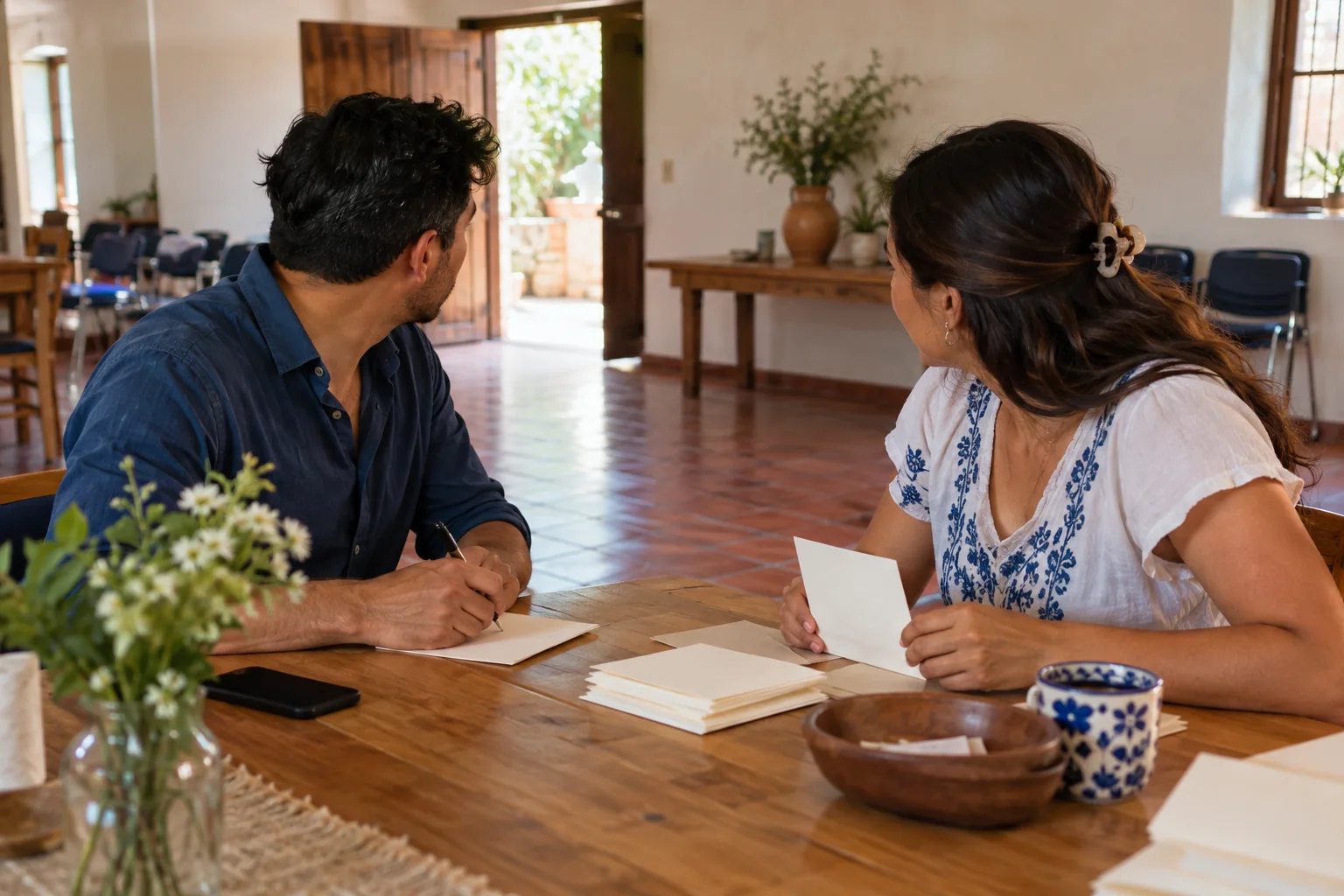
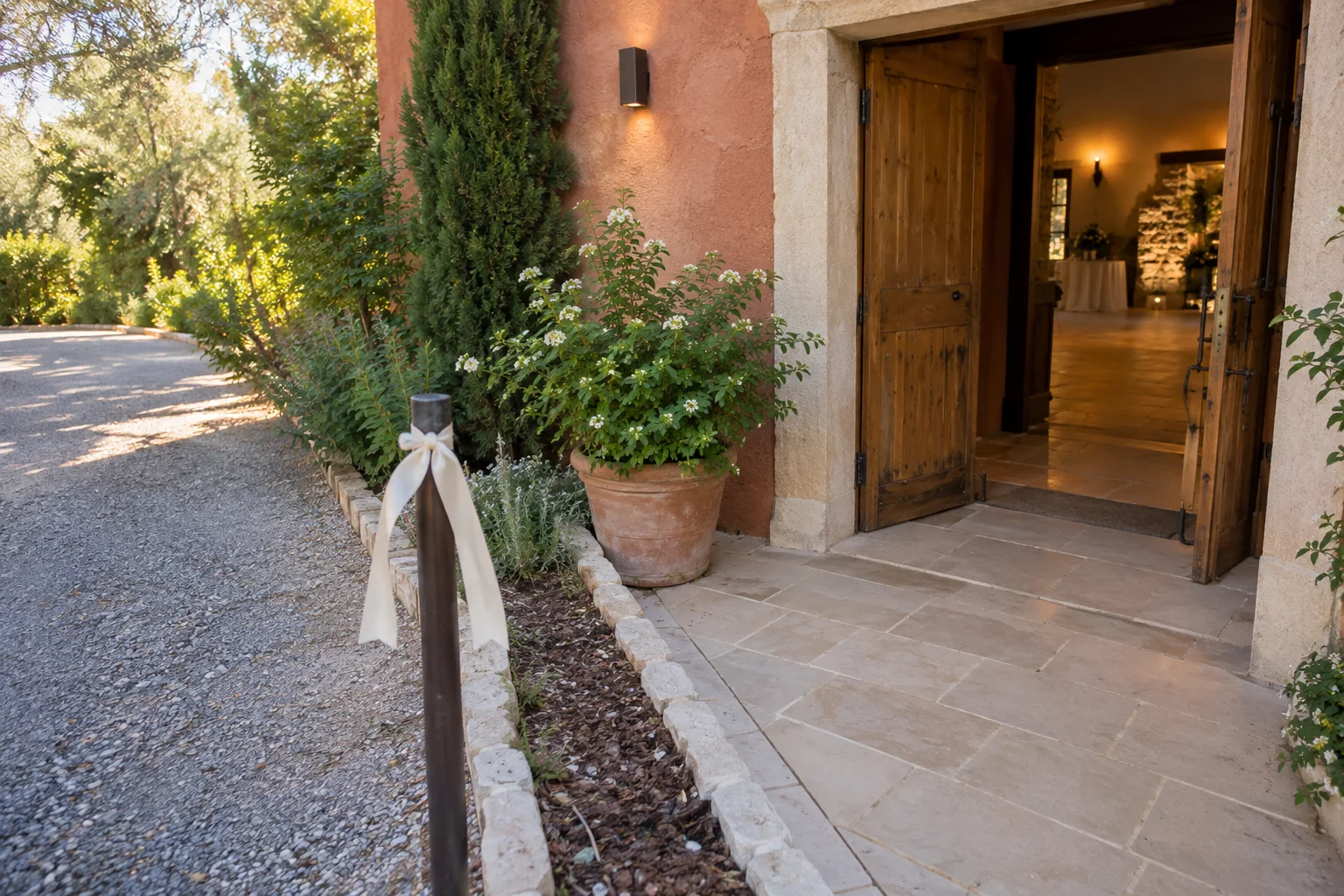
Try the approach from the direction your guest will arrive. Check whether the entrance is open at that time and whether the person at reception knows about the event. An illustrative photo in this guide shows why the door and path may need separate descriptions. It does not represent your venue or prove that its route is safe, open, or accessible.
Read more: Event venue change: message and arrival without confusion.
Does the map pin still work when the entrance changes?
A pin may point to the correct building while sending guests to a door that no longer receives arrivals. Check the venue address separately from the final route to the confirmed entrance. A working link only proves it can be opened; it does not prove the path is authorized, clear, or available during arrivals. Do not replace the whole address to explain a change affecting only the door.
Add a recognizable landmark and agree with the venue on which conditions can be described. A picture does not prove step-free access or replace asking about a person’s needs. Keep unchecked conditions marked as pending. If someone else welcomes guests, give them the same instruction used in the message and confirm they received it.
| State | What to check |
|---|---|
| Correct building | Address retained; door still to check |
| Door confirmed | Agreed landmark and route |
| Updated message | Text, map, and team agree |
What if the ceremony and reception are at different venues?
Present each venue with its own purpose and time. Two buttons labeled “Location” force guests to guess which opens the ceremony and which leads to the reception. Prefer labels such as “Ceremony map” and “Reception map,” each with its written address. If only some guests attend one part, check which information should be shared with each group.
Test both links after placing them in the final invitation. Duplicating a button can keep the first destination even when its label changes. Check the order too: a list of venues does not explain where the gathering begins. Keep a clear reference to the part of the program described by each block, rather than asking guests to infer it.
Travel between venues has its own conditions. An estimated navigation time does not confirm transportation, parking, or access at the next location. Ask the responsible people what has actually been agreed and communicate what is still pending. If you later change an announced venue, prepare a specific change notice instead of hiding the update in the second map.
If an announced venue is no longer correct, use the event venue change notice.
How do you share a private address without exposing it too widely?
Choose who needs the private address and the channel you will use to provide it. A forwardable link can circulate beyond the original group. Do not confuse an unguessable URL with a guarantee of private access. If the invitation is public, consider separating general information from details you will send only to the intended people.
You can prepare a message saying “Address provided through the agreed channel” while that step is still pending. The phrase does not replace the later delivery: record who will handle it and how they will check that the recipient received the information. Avoid publishing door codes, access credentials, or details of a home in an image that may be shared outside the group.
This page creates the draft in your browser and does not send its fields to the venue or Convite. It does not request your location, retain a guest list, or automatically add recipients. However, a file you download can contain whatever you typed. Review it before sharing, and decide where you will keep it. A local export is still a document you need to handle.
2. What arrival message will you prepare?
Choose the venue’s actual status. Fields are not sent or persistently saved. The draft does not edit your invitation.
Without JavaScript: write the event and time, then the confirmed venue, address, and entrance. If pending or private, keep that status explicit and agree how details will be delivered. Review before sending.
How do you separate the arrival time from the start time?
Explain what each time means. “Arrival” may refer to doors opening; “start” may mean the beginning of an activity. If you give both, they must fit what the venue permits. Do not choose an earlier time just by copying generic advice. Check that someone will actually be able to receive people during that interval.
The calculator subtracts a buffer you choose from the start time and indicates whether arrival falls on the previous day. It is clock arithmetic, not a travel prediction. It does not include traffic, parking, admission checks, or time-zone changes. If people are coming from other cities, state which local time the invitation uses and check the calendar separately.
For a test, enter a start at 00:10 and a 20-minute buffer: the result should show 23:50 on the previous day. Both numbers are a calculation example, not a recommended buffer. If the result does not match the venue’s opening time, correct the plan before copying it into the arrival message. Agreement with the venue comes before the calculation.
3. What time does your buffer produce?
Subtract your buffer from the start. This does not calculate travel, traffic, or time-zone changes; first confirm the venue can receive guests then.
Waiting for a check.
Without JavaScript: subtract your chosen buffer from the start; if you cross midnight, indicate the previous day. Check the result and the venue’s opening time.
How do you test the invitation before sharing it?
Open the version you will actually send and check the text, map, and button from there. A correct link in your working document does not prove the copy pasted into the design is the same. Ask someone unfamiliar with the venue to explain where they would arrive. Their uncertainty may reveal an incomplete name or an entrance you took for granted.
Check readability on a narrow phone. The address should not be cropped inside an image or depend only on color to identify the venue. Give the link a label that explains its destination. If someone cannot open maps at that moment, they should still be able to read the agreed venue and entrance without reconstructing them from a thumbnail.
The exportable sheet gathers completed checks and unresolved details. Ticking a box does not perform the test for you: use it after you have checked that detail. Before sharing the file, look for empty fields, conflicting references, and private addresses that should not circulate. Keep a copy of the final message so you can distinguish it from earlier drafts.
What should you check when moving from draft to real invitation?
Transfer only confirmed details, then check how they appear in your chosen medium. The message builder does not edit an existing invitation, update tickets, or send messages. An image, PDF, and website can have different link options. Check the result in that format, rather than reviewing only the text produced by the tool. The final guest-facing copy is the one that matters.
Convite is an app for creating QR invitations and organizing admission. Its local options without an account and its synchronization features with a free account serve different purposes. The first event is free; later events have subscription conditions. Check the actual product to see what is available, without attributing this guide’s four editorial modules to the app.
If the venue changes after the invitation is sent, update the materials you control and notify the affected people. Sending a notice, receiving it, and confirming attendance are different states. The map helps with arrival; it proves none of those three actions. Finish the preparation when the published information matches the venue and conditions that have actually been agreed.
4. Which checks have you completed?
Check only what you have verified. This sheet does not prove message delivery or confirm attendance. It resets when the page reloads.
Without JavaScript you can check the list while reading; it is not saved or automatically exported. Use paper or copy the details you need.
A place needs a clear moment too: check how to write the time beside each location.
If the door changes while the venue stays the same, review how to announce a changed event entrance.
Before finalizing your plan
Can I put only a Google Maps link on the invitation?
Add the venue name and address too. Guests should be able to identify the destination without opening maps. Include the entrance if it differs from the main access point.
Does the checker confirm that a link leads to the right venue?
It checks only the format of pasted text. It does not open the link or follow redirects. You must check that the destination, written address, and entrance match.
Do I need to share my live location?
A fixed place is enough to identify the venue. Sharing personal movements is a different feature and is not needed for a guest to find the event.
How do I show two venues on the invitation?
Separate ceremony and reception, each with its name, address, time, and labeled link. Test both buttons in the final version and check that they do not open the same place by mistake.
Does the calculator recommend how early guests should arrive?
You choose the buffer. The tool simply subtracts it from the start and flags a possible day change. It does not calculate traffic, travel, accessibility, or time zones.
Do the modules send the invitation or save the address?
They do not send messages or persistently save fields. Copying or downloading requires your action. Review the file before keeping or sharing it.
Sources and helpful reading
Practical guide from the editorial team. Examples are for guidance; adapt decisions and requirements to your event.
- Google Maps: share a place and directions: Official help consulted October 24, 2026.
- Google for Developers: Maps URLs: URL syntax and scope; page updated October 21, 2026, consulted October 24.