Invitations
Event entrance changed: wording and a clear arrival plan
An entrance change names the new door and the instruction it replaces. Check the route with the venue and welcome team first. Update the invitation and notify guests through agreed channels, without assuming everyone read the message or that the event moved to a different venue.
Updated 2026-10-30
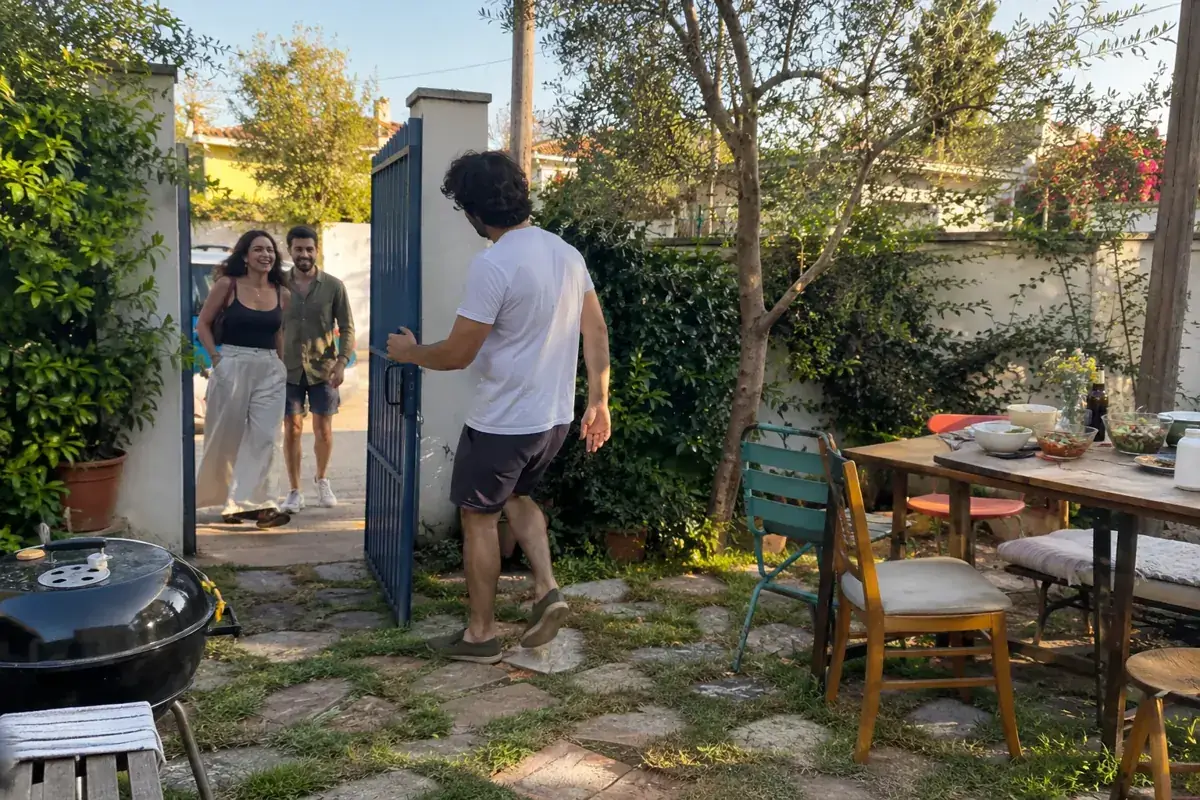
The address is still correct, but the door on the invitation will no longer receive guests. Sending another map pin can create a new misunderstanding when the building has not changed. This guide covers that specific situation: a different entrance at the same venue for the same event. If the whole venue changes, use the separate venue-change guide. These are editorial templates to adapt, not messages from a real party or claims about a venue we have inspected.
| Situation | What to confirm |
|---|---|
| Different door, same venue | Door and route available |
| Different venue | Use the venue-change guide |
| Different ticket or QR | Check the instruction with the organizer |
Did the door, venue, or ticket change?
State the difference in the opening sentence: the venue and time stay the same, but guests enter through another door. Distinguish the physical entrance from an admission ticket. Do not say an invitation or QR code has become invalid unless the organizer has confirmed that separate change.
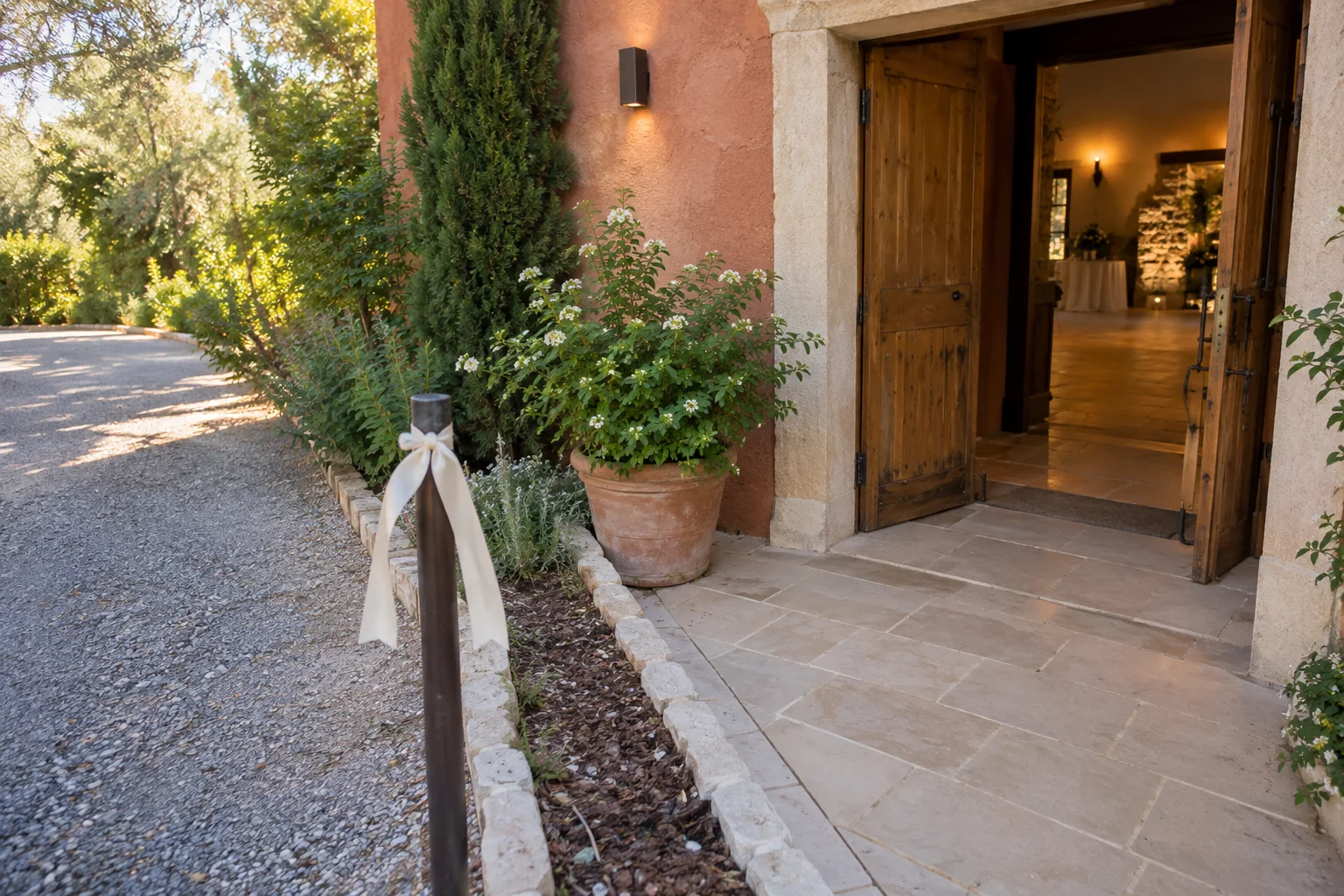
Name the door using a recognizable reference: a street, a side of the building, or a landmark approved by the venue. Avoid “around the back” or “the other entrance” without context. A direction should neither expose a private access code nor turn a service door into an authorized guest entrance.
What should you check before announcing the new entrance?
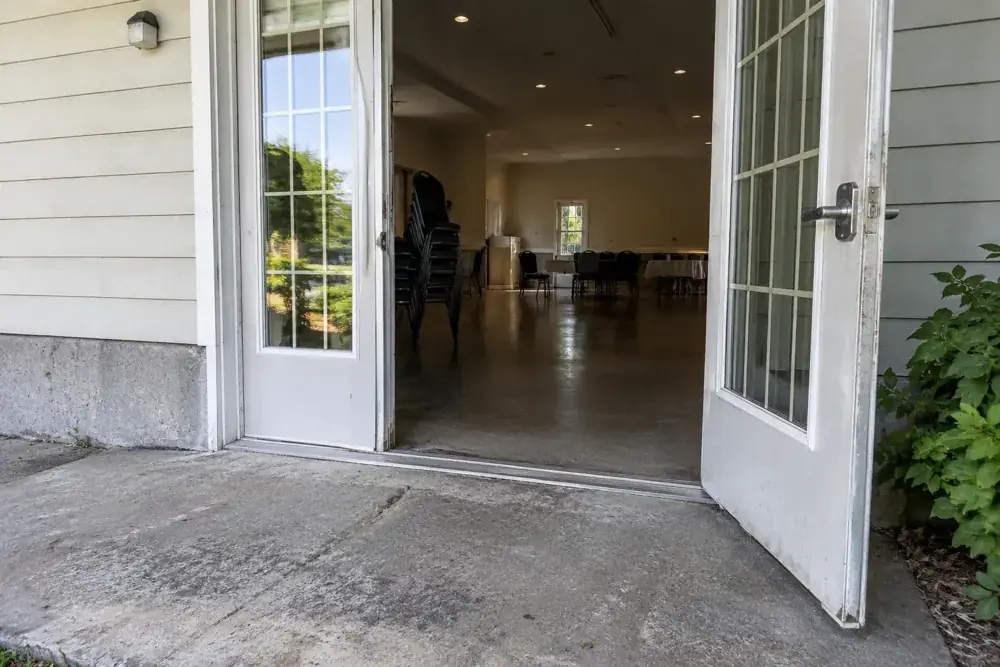
Check with the venue contact that the door will be available during arrivals and that the team will receive guests there. Review the route from the point where guests usually stop, not just the doorway. An open door in a photograph does not prove the entire route is authorized, clear, or available on the event date.
Ask which conditions can be described from checked information: steps, surfaces, elevators, or agreed assistance. Scope and NSW Health recommend giving access information without assuming attendee needs. Do not turn overseas dimensions or legal rules into a claim of local certification. Identify missing information and provide the agreed contact for a review.
Read more: Invitation location: map link, address, and entrance.
Prepare the entrance update
Local blog tool: no messages are sent or data stored; it is not an app feature.
What message can you send guests?
Template: “Entrance update for [event and date]. The venue and time have not changed. We will welcome you at [confirmed door and landmark] instead of [previous instruction]. From [arrival point], follow [checked route]. For access questions, use [agreed contact]. This replaces the previous door instruction.” Replace the bracketed fields before sending it.
Put the instruction in the message body even when attaching a revised invitation. Guests should not need to open an image to learn what changed. UW–Madison recommends making announcement information available as text as well. A map can support the instruction, but it does not replace a clear door reference or a useful contact.
An invitation layout perspective
ItsTrixTV demonstrates a separate digital invitation design workflow. It illustrates card layout, not a Convite feature or a checked venue entrance. Review the changed-door instruction before adapting a design; the tutorial does not confirm an arrival route.
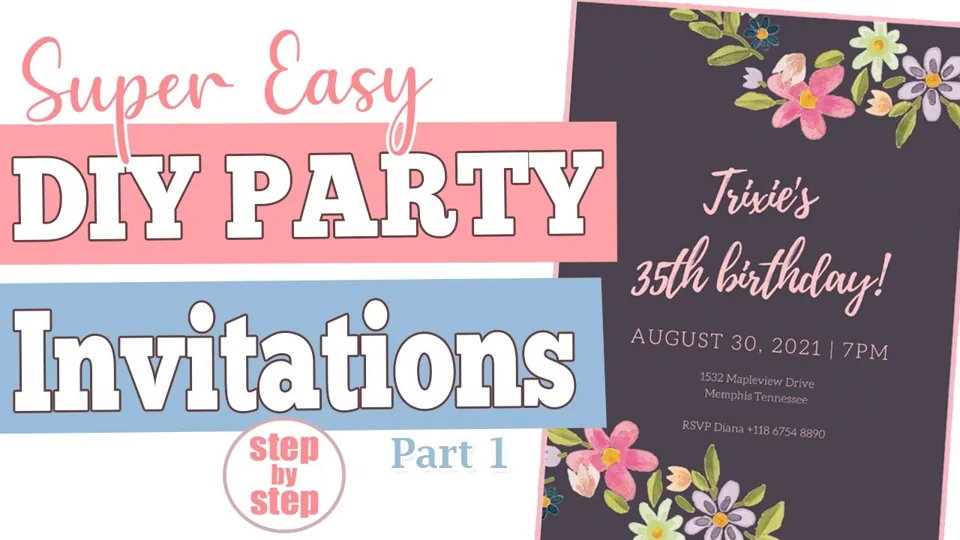
The YouTube player loads when you open the video. Watch on YouTube.
Which invitation versions need updating?
Review the invitation you control, pinned messages, reminders, and the instructions held by the welcome team. Date the update so the current version is recognizable. If an old screenshot was forwarded, ask those senders to relay the correction; do not promise to retrieve or erase every earlier copy. Keep a record of the channels actually updated.
The draft prepared on this page sends no notification. Review it and share it through your usual channels. Convite provides invitations and QR tickets; do not claim it automatically fixes screenshots, maps, or external messages. Check the functions available for your event in the app before describing them to guests.
Check what is missing before sharing
Options without JavaScript
- The venue has not confirmed the door
- Keep the change pending and agree on the next update; do not present a tentative route as available.
- Door confirmed, no team handover
- Confirm who will welcome and direct arrivals before promising coverage. Give that person the same message version.
- Door and team confirmed
- Update channels you control and identify the replaced instruction. Sent does not mean everyone read it.
How can you help someone at the previous entrance?
Agree with the venue on clear signage or a person to direct arrivals when practical. A sign should lead to the confirmed entrance without blocking a route or covering emergency information. Do not point guests toward stairs or a locked door without checking the rest of the path. Give the welcome team the same instruction sent to guests.
If someone reports a difficulty, ask what they need so you can review an available option with the venue contact. Do not assume their abilities or promise to carry someone or improvise a ramp. This guide coordinates ordinary arrivals; emergencies follow the venue’s procedures and the instructions of those responsible.
Read more: How to welcome guests without creating lines or leaving anyone lost.
When is the entrance update ready?
The update is ready when the door is confirmed, the instructions agree, and the team knows how to handle arrivals at the previous entrance. That does not prove every guest read the notice. If a particular reply is needed, request it clearly and keep unconfirmed points marked as pending.
After the event, note which landmark helped people find the door and which instruction caused uncertainty. Keep the useful lesson without retaining an unnecessary list of personal difficulties. Before reusing the invitation for another date, confirm access again: a door available once is not a promise for the next event.
Also read: Guest reminders: what to say and when to send them.
Before finalizing your plan
Should I change the map if the building stays the same?
Check the arrival point and name the confirmed door. Another link to the same building does not explain the entrance by itself.
Does a door change invalidate the QR ticket?
Do not assume so. The door and ticket validity are separate matters; confirm any ticket change with the organizer.
Is replacing the invitation image enough?
Add a text explanation and review the channels carrying the old instruction. You cannot guarantee that every copy updates.
Can I call the new entrance accessible?
Describe only conditions checked with the venue and ask what the person needs. A photograph or open door does not certify the entire route.
What if the new door is not confirmed yet?
Keep the change pending and agree on the next update. Do not present a tentative route as already available.
Does the tool send the message to my guests?
It only prepares a local draft. Nothing is sent, stored, or synced; review the fields and use your agreed channel.
Sources and helpful reading
Practical guide from the editorial team. Examples are for guidance; adapt decisions and requirements to your event.
- Scope: information before an event: Entrance, route, and contact; UK recommendations without importing legal rules.
- UW–Madison: accessible event guide: Announcement text, access, and teams; ADA dimensions are not imported.
- NSW Health: event checklist: Access and wayfinding; Australian context, without certifying this event.