Invitations
Wrong name on an invitation: how to correct it
Correct a guest’s name by checking the form they want you to use and contacting them privately. Then review the list and the copies you still need. A name correction does not add a guest, confirm an RSVP or prove that an older copy has stopped circulating.
Updated 2026-11-11
This method concerns a guest’s name for a party or reception. It does not change official documents or replace one guest with another. Start with what has been confirmed, leave open questions visible and keep a private typo from becoming a group announcement.
| Situation | Concrete next step | What it does not prove |
|---|---|---|
| Draft | Update the confirmed name in the source and open the final version | That the invitation was sent |
| Sent to the right person | Explain the correction privately and identify the version to use | That every earlier copy disappeared |
| Identity still unclear | Clarify the intended person before merging records | That similar names identify the same person |
Which name should you check first?
Ask the person how they want their name to appear. Keep the spelling, accents, spacing and order they provide instead of guessing a surname. GOV.UK’s name-field guidance notes that names do not all fit a fixed first-name/last-name format. It informs this tool’s design rather than setting an etiquette rule.
If you are not sure whether two records refer to the same person, pause the file correction. Clarify that point privately. Similar-looking names are not enough to merge guest records.
What should the private message say?
Name the error and the action you want to take without asking the guest to reassure you. Fictional example: “Hi Alex. I misspelled your name on the invitation. I’m sorry. Could you confirm how you would like it to appear so I can correct it?” Adjust the tone to your relationship.
If the guest has already supplied the correct form, thank them and use it. Do not make them confirm the same information again just to complete a checklist. W3C’s clear-instruction guidance supports keeping the request short and understandable.
Read more: How to Send WhatsApp Invitations Smoothly and Organically.
Choose the next review
Review before sharing
Confirm the spelling, correct the source and open the intended copy. The status remains draft until it is actually sent.
Clarify the correction privately
Identify the version to use. Review the list separately; a reply about a name does not confirm attendance.
Clarify identity first
Do not merge records or send more details until the intended person is clear. Similar names are not enough.
Compare two spellings without deciding identity
The comparison keeps capitalization, accents and spaces. It does not know which form is correct. You can try fictional text.
- First form
- Second form
Correction review
This counter records checked boxes, not delivery or attendance.
Checked reviews: 0 of 5.
Checked reviews: {n} of 5.What if the invitation was still a draft?
Correct the source text before preparing new copies. Check the name stored in the guest list as well, so a later personalization does not restore the typo. A corrected draft is still a draft; looking ready does not mean it has been sent.
Open the version you actually plan to share and read the full name. Checking the filename is not enough: a correctly named file can still contain old wording.
An invitation layout perspective
ItsTrixTV shows a separate digital invitation design workflow. The tutorial illustrates card layout; it does not reconcile name corrections or demonstrate an automatic Convite RSVP feature. Review who is included and what remains undecided before adapting the design.
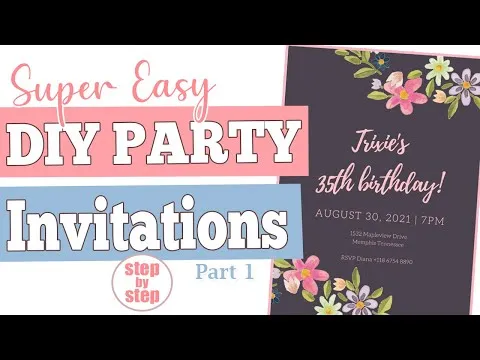
The YouTube player loads when you open the video. Watch on YouTube.

What should you check after it has been sent?
Distinguish a typo in the name from a wrong recipient. If the right person received it, communicate the correction through the agreed private channel. If you do not know who received it, verify the contact before sending more event details. Do not post a screenshot of the error in a group to find the person.
Changing text does not prove that every older image or printout has updated. Explain which version to use without promising a recall you have not verified.

How do you avoid duplicating the guest?
Once you have confirmed that it is the same person, update the display name in the existing record. Review the invitation, allocated places and RSVP separately. A name correction does not mean “attending” and should not, by itself, add another guest row.
When several hosts collaborate, identify who will update the working list. A note such as “name checked with the guest” can record the action without copying a private conversation into the shared file.
Read more: Email invitations: subject line, message, and attachments.

What about copies and place cards?
Review the materials your event will still use, such as the invitation, a place card or the welcome list. Separate completed checks from outstanding ones. You do not need to circulate the old name spelling to tell the team what to update.
If the event uses a personal access pass, preserve the relationship between the guest and the valid invitation. Do not redraw a QR code or assume what generating another ticket will do; check the system’s actual behavior.
Also read: How to Make a Guest List You Can Actually Use.
What do this page’s tools actually check?
The selector distinguishes a draft, a sent invitation and unresolved identity. The comparison tool displays the two forms you type; it does not know the correct name or identify anyone. The checklist counts checked review items without proving delivery, reading, acceptance or deletion of older copies.
Use fictional examples to explore the tools. Without JavaScript, the guidance and sample message remain readable; compare the spellings yourself. You do not need to upload an invitation or your contacts.
How do you make the final check before sharing?
Read the name in the final design and check its intended recipient. Then review the event details that were supposed to stay the same. A second read can uncover a mistake; it does not guarantee message delivery or an RSVP.
Convite lets you create invitations and QR codes. Check the workflow you actually use rather than assuming it corrects all earlier messages. The videos illustrate invitation structure or design; they do not demonstrate an automatic recall or this process inside Convite.
Before finalizing your plan
Should you notify the whole group?
Handle an individual typo with the guest and anyone who needs to update a relevant item. You do not need to post the old spelling to the group.
Does a corrected name confirm attendance?
The correction clarifies the name to display. Record the RSVP separately when the guest actually provides it.
Can you remove accents to simplify the name?
Use the form confirmed by the person. If a tool cannot support it, check that limitation and agree on a solution instead of changing it yourself.
Does editing the design remove a sent copy?
An edit does not prove what happened to each received copy. Identify the version to use without promising an unverified recall.
What if it might be a different person?
Clarify identity and recipient first. Do not merge records or send more event details based only on similar names.
Does the comparison tool know the correct name?
It only compares the text you enter. Confirm the desired form with the guest; the result does not validate identity or attendance.
Sources and helpful reading
Practical guide from the editorial team. Examples are for guidance; adapt decisions and requirements to your event.
- GOV.UK Design System: names: Design guidance on avoiding a single assumed name format.
- W3C WAI: clear instructions: Writing guidance updated July 16, 2024; not wedding etiquette rules.